

TurboQCLI: Fast Command-Line Quantization for LLMs

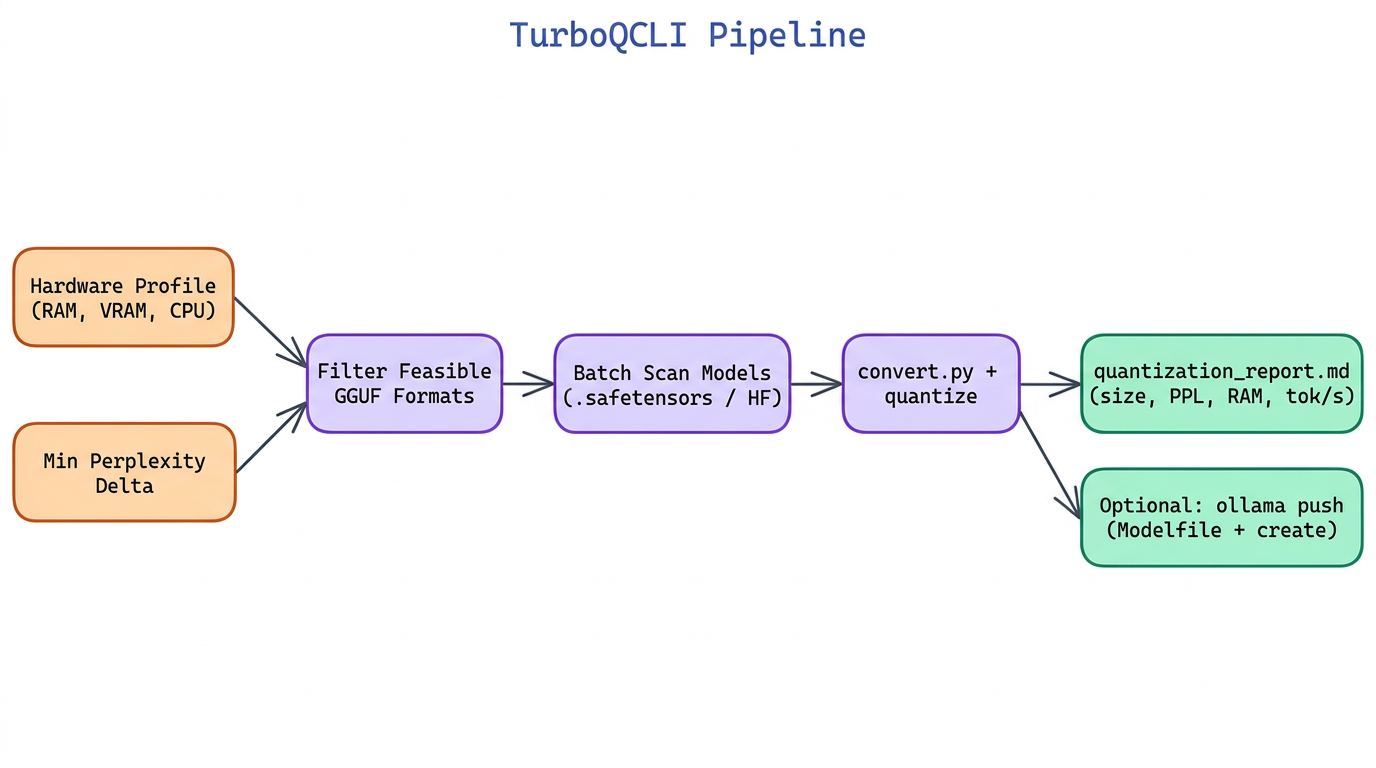 Pipeline Architecture
The Problem
Picking the right quantization level for a model means balancing file size, RAM usage, inference speed, and output quality — and doing it manually across a model directory of 20+ checkpoints is tedious and error-prone.
NEO built TurboQCLI to automate that decision: given a hardware profile and a minimum acceptable perplexity, it selects the optimal quantization level per model, runs the conversions in batch, and outputs a comparison table so you can see exactly what you are trading off before deploying.
Hardware-Aware Quantization Selection
TurboQCLI takes a hardware profile as input — available RAM, GPU VRAM (or none for CPU-only), and CPU architecture — and maps it to a ranked list of feasible quantization formats. The ranking algorithm filters out formats whose model size would exceed the available memory, then sorts the remaining options by a weighted score that balances perplexity degradation and inference speed for the given hardware.
Supported formats span the full llama.cpp quantization ladder:
| Format | Bits/Weight | Typical Size (7B) | Perplexity Delta |
|---|---|---|---|
| Q2_K | 2.6 | 2.8 GB | +0.80 |
| Q4_K_M | 4.5 | 4.1 GB | +0.15 |
| Q5_K_M | 5.5 | 4.8 GB | +0.08 |
| Q8_0 | 8.0 | 6.7 GB | +0.02 |
| F16 | 16.0 | 13.0 GB | 0.00 (baseline) |
The --min-perplexity-delta flag sets an upper bound on acceptable quality loss. If the best format within the hardware budget exceeds that threshold, TurboQCLI warns and offers the next hardware tier up as an alternative recommendation.
Batch Quantization and Comparison Table
Passing a directory path instead of a single model file triggers batch mode. TurboQCLI scans for all .safetensors or HuggingFace model directories, applies the hardware-aware selection per model, and queues the conversions through llama.cpp's convert.py and quantize binaries. Progress is displayed with a per-model progress bar using rich.
Once complete, a comparison table is written to quantization_report.md and printed to stdout:
Model                  Format    Size     Perplexity  RAM     Speed
──────────────────────────────────────────────────────────────────────
mistral-7b-instruct    Q4_K_M    4.1 GB   8.24        6.2 GB  32 tok/s
codellama-7b           Q5_K_M    4.8 GB   7.91        7.1 GB  27 tok/s
phi-2                  Q8_0      1.7 GB   10.62       2.5 GB  48 tok/s
Each row links to the output GGUF file path, so the table doubles as a manifest for downstream deployment steps.
Ollama Integration
TurboQCLI includes an --ollama-push flag that, after quantization, automatically generates a Modelfile for each output and runs ollama create to register the model locally. Models are named using the format <base-name>-<quant-level> (e.g., mistral-7b-instruct-q4km) and are immediately available via ollama run.
turboqcli quantize ./models/ \
  --ram 16 \
  --vram 0 \
  --cpu-type arm64 \
  --min-perplexity-delta 0.20 \
  --ollama-push
The command above scans ./models/, selects the best format for a 16 GB RAM / CPU-only ARM64 machine, quantizes everything, and registers each model with Ollama in one pass.
How to Build This with NEO
Open NEO in VS Code or Cursor and describe what you want to build. A good starting prompt for this project:
"Build a Python CLI tool called TurboQCLI that wraps llama.cpp quantization. It should accept a hardware profile (RAM, GPU VRAM, CPU type) and a minimum perplexity threshold, then automatically select the best GGUF quantization level per model. Support batch quantization of entire model directories, output a comparison table of quality vs size trade-offs to a markdown report, and include an --ollama-push flag that registers quantized models with Ollama automatically."
NEO generates the project structure and core implementation. From there you iterate — ask it to add perplexity benchmarking using a calibration dataset, build a web dashboard for the comparison table, or extend Ollama integration to push models to a remote registry. Each request builds on what's already there.
To run the finished project:
git clone https://github.com/dakshjain-1616/turboQcli
cd turboQcli
pip install -r requirements.txt
python -m turboqcli quantize ./my-models/ --ram 16 --vram 8 --min-perplexity-delta 0.15
TurboQCLI prints the selected format and rationale for each model, runs the conversions, and writes a quantization_report.md you can use as a deployment manifest.
NEO built a hardware-aware batch quantization CLI that selects optimal GGUF formats, generates comparison tables, and integrates directly with Ollama for immediate model deployment. See what else NEO ships at heyneo.com.
Try NEO in Your IDE
Install the NEO extension to bring AI-powered development directly into your workflow:
- VS Code: NEO in VS Code
- Cursor: Install NEO for Cursor